
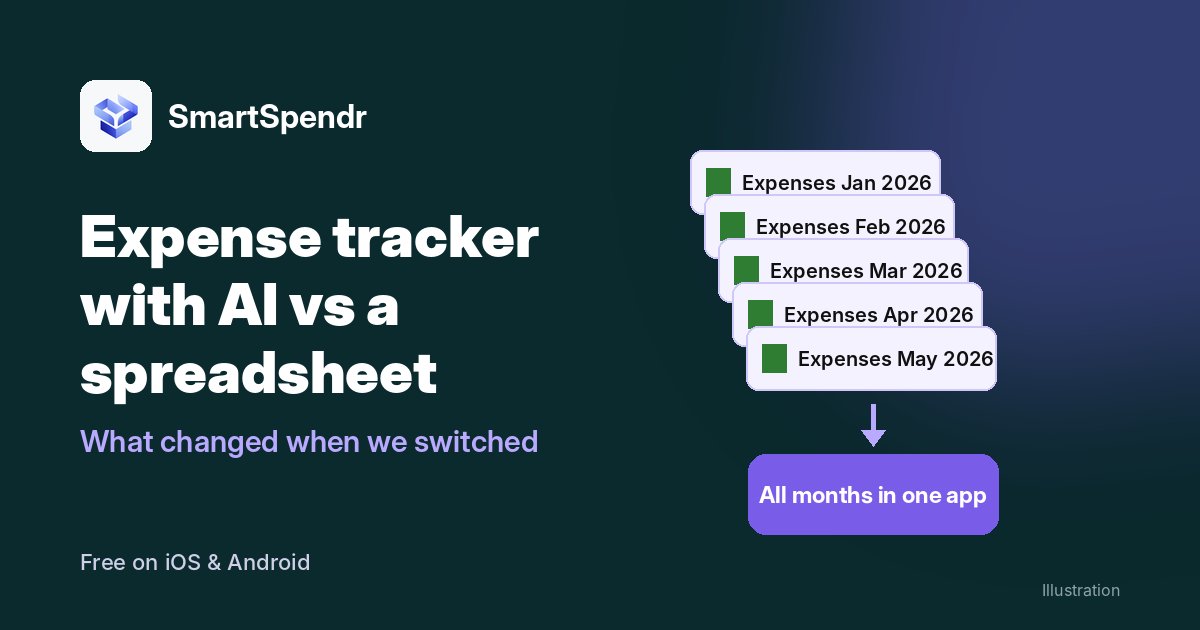
If you’ve tracked your expenses in a spreadsheet for several years, you probably know the routine: a new file every month, named by month and year, built from the same template you copy on the 1st. It works, and you learn a lot about your spending along the way. But it can get slower the longer you keep it going. We know, because that was us for years.
This post compares the two from the user’s side: what a spreadsheet does well, where ours slowed us down, what changed when we moved our tracking to an expense tracker with AI, and the one job we still keep in a spreadsheet.
What a spreadsheet does well
A spreadsheet is free, it’s yours, and it does exactly what you tell it to. You choose the columns, the categories and the formulas. Nobody else decides how your money is labeled.
It’s also very good for planning. Rows for categories, a number next to each, a total at the bottom, and you can try different numbers until the month adds up. We still use one for that, and we’ll come back to it below.
If you enjoy building formulas and your tracking is simple, a spreadsheet can serve you well for a long time. Ours did.
Where the spreadsheet slowed us down
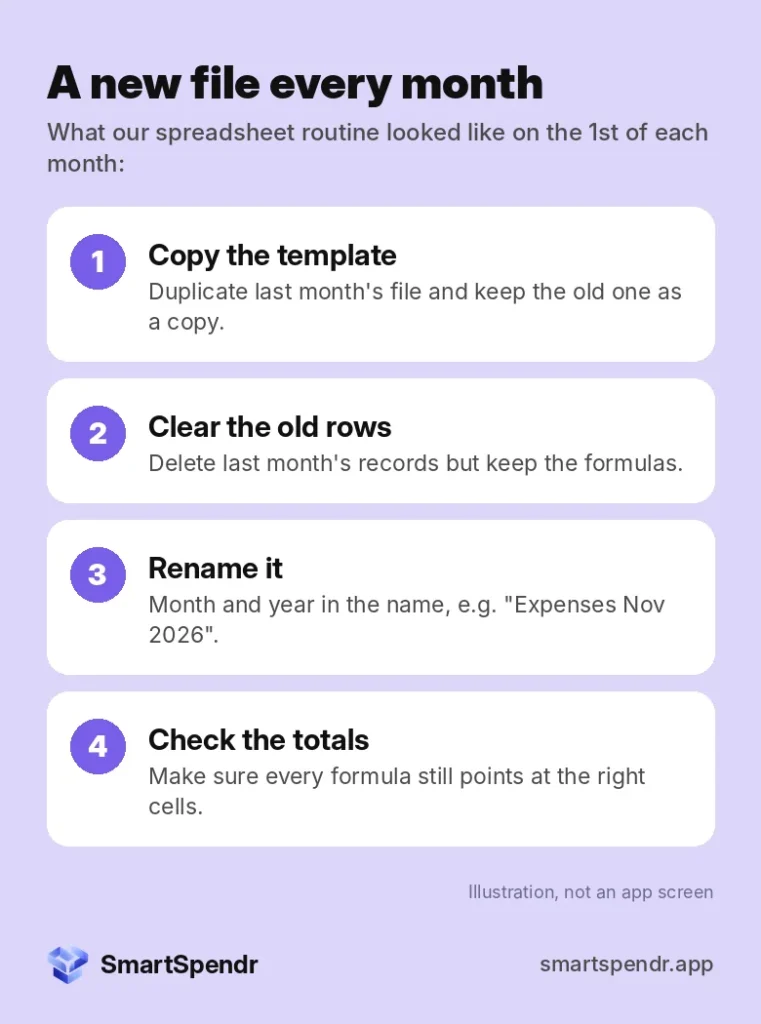
A new file every month
Every month started with the same routine: copy the template, clear out last month’s rows, rename the file with the new month and year, and check that the totals still pointed at the right cells. It only took a few minutes, but it had to happen every single month, and we kept a separate copy for each one.
Every record took more time than it should
Logging one expense meant opening the file, finding the next empty row, and typing the date, amount and category. That’s fine at a desk. It’s less fine standing at a checkout, so records got saved up for later, and some of them never made it in.
Old months were hard to see
Because each month lived in its own file, looking back meant opening several files. “How does this month compare with March?” was a small project, not a quick look.
Custom ranges and custom questions were hard
Monthly totals were easy because the template was built for them. Anything else wasn’t. The last six weeks, a quarter, or “since we moved” meant pulling numbers from several files and writing new formulas. Most of the time, we didn’t bother, so the only view we really had was one month at a time.
What changed with an expense tracker with AI
When we moved day-to-day tracking into SmartSpendr, most of that setup simply went away.
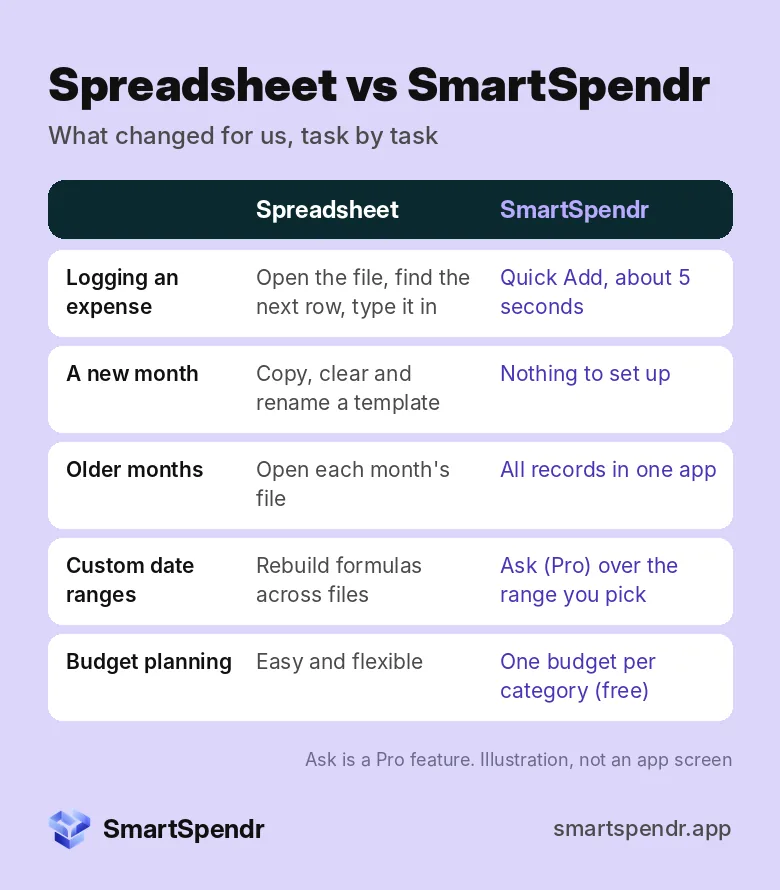
- Logging is quick. Quick Add takes about 5 seconds per expense: amount, category, account. It’s easy to do right after paying, so fewer records get lost.
- No monthly setup. There’s no template to copy. Every record goes into the same place, and the app works out the totals.
- Charts without formulas. The category chart shows each category’s share of your total spending.
- Budgets per category. You can set a budget for each category on the free plan.
The AI part is where custom questions come in. On Pro, Ask lets you type a question in your own words about the date range you pick. We’ve asked things along the lines of “how could we bring our monthly spending down?” and “what daily average would keep us inside the budget?” Those are the kinds of questions our monthly sheet couldn’t answer without a lot of extra work. The app calculates the totals first, and the AI is given those figures and told to quote them. If you want the details, we explained it in AI Budget App, Explained.
Budget Coach (also Pro) runs a 50/30/20 check on the current calendar month, using totals calculated from your own records. It needs “Share full transaction details” turned on.
Curious how it feels next to your spreadsheet? SmartSpendr is free on iOS and Android.
What the AI sees, and what it doesn’t
Moving from a file only you can open to an app with AI is a fair thing to think twice about. Here’s how it works in SmartSpendr:
- By default, the AI receives a spending summary. If you turn on full sharing, it gets each transaction’s date, type, amount, category and account for the profile and date range you pick, and you see a preview before anything is sent.
- Transaction descriptions and notes are never sent to the AI.
- There’s no bank login, and the app doesn’t move money.
- AI features are Pro-only. Tracking, budgets and charts work on the free plan without any AI.
What we still keep in a spreadsheet: the plan
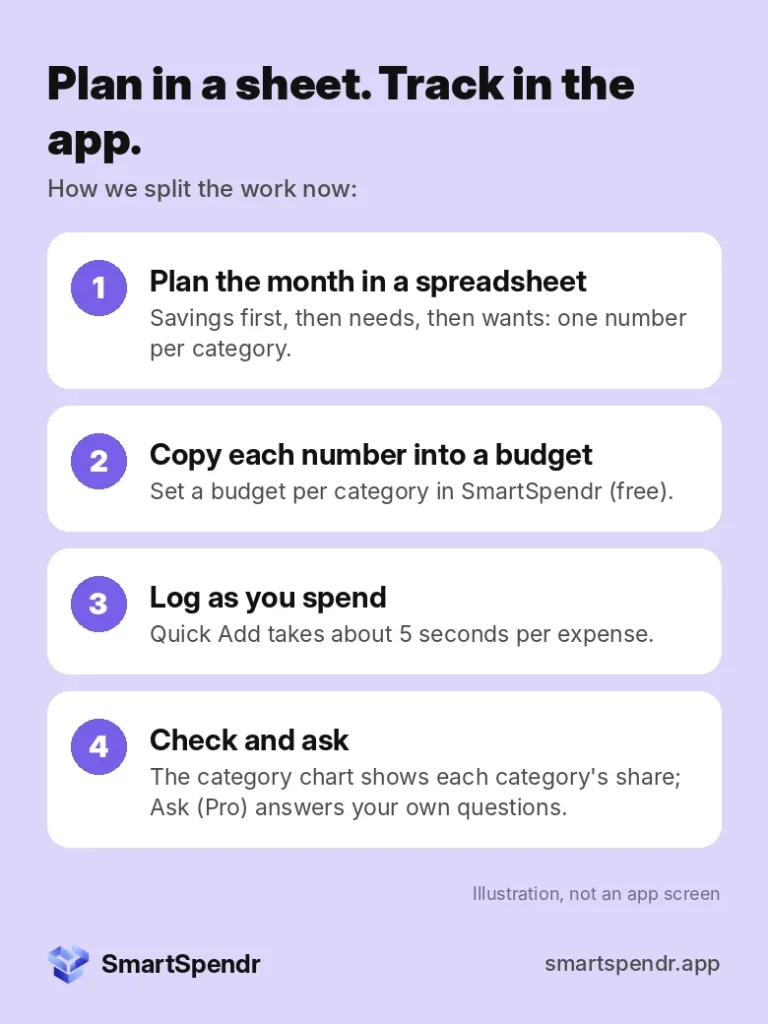
We didn’t throw the spreadsheet away. Budget planning is still easier there for us: a row per category, try a number, watch the total change, adjust until it fits. So that’s what we use it for.
The split looks like this. We plan the month in the spreadsheet (savings first, then needs, then wants, one number per category). Then we copy each number into a category budget in the app, log spending as it happens, and check how the month is going against the plan. If you haven’t set a plan yet, start with Needs vs Wants: Plan Where Your Money Should Go Before You Track It.
Moving from a spreadsheet: a 3-step switch
- Keep your old files as an archive. Don’t delete anything. Your history is still useful, and you can open it whenever you want to.
- Bring your history over, or start fresh. On Pro, you can import a CSV or Excel file. In the app on your phone, you match your spreadsheet’s own columns to the app’s fields, check the parsed records, and then save them. If you’d rather keep it simple, start fresh on the 1st of next month.
- Set your budgets and a routine. Copy your planned numbers into category budgets, then log daily and check weekly. Our guide on how to track expenses without linking your bank walks through the routine we use.
Which one fits you?
A spreadsheet may be all you need if:
- You enjoy building and maintaining formulas.
- You mostly look at one month at a time.
- You track at a desk, not on the go.
An expense tracker with AI may suit you better if:
- You want to log spending as it happens, in seconds.
- You’re tired of setting up a new file every month.
- You want to look across months or ask your own questions without writing new formulas.
Or do what we do: plan in a spreadsheet, track in an app.
SmartSpendr is free on iOS and Android. Log an expense in about 5 seconds, set a budget for each category, and see each category’s share of your spending, with AI help on Pro when you want it. Get SmartSpendr at smartspendr.app.
This post is for education only and isn’t financial advice.