
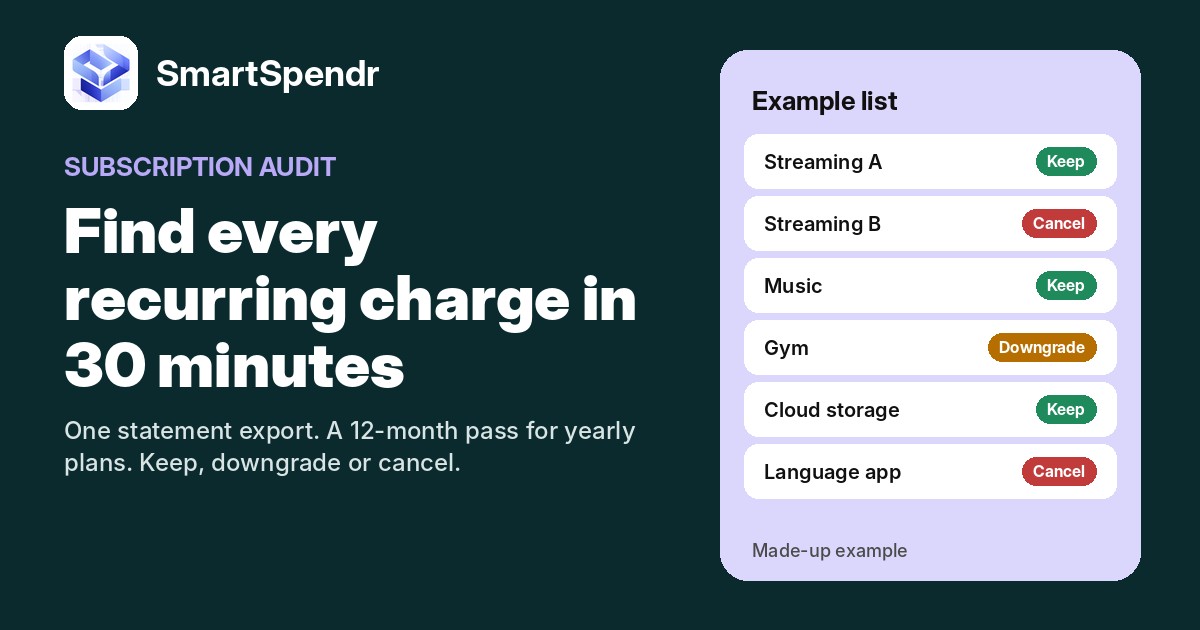
Most of us don’t sign up for too many subscriptions on purpose. They pile up one free trial at a time, and because each charge is small, none of them feels worth a second look. A subscription audit fixes that with one short, finite job: find every recurring charge, decide what stays, and set a date to look again.
We ran this check on our own subscriptions while putting this post together, and found a few we could cancel. Here’s the routine we used. It takes about 30 minutes, and you don’t have to connect a bank account to anything.
What you need before you start
- One statement export for each card or account that pays for things (CSV or PDF from your online banking).
- Your phone, for the App Store and Google Play subscription lists.
- 30 minutes and somewhere to write a list: paper, a spreadsheet, or an expense app.
The same export works as a monthly catch-up for anything you forgot to log. We use it in our no-bank-link tracking routine.
Step 1: Pull three months, then do a 12-month pass
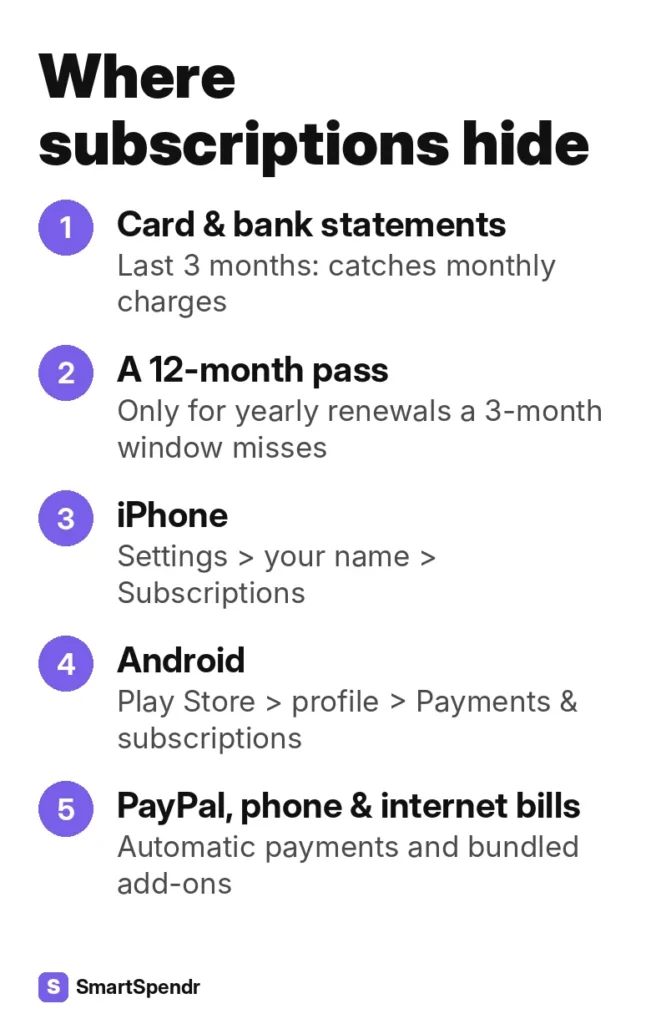
Three months of statements catches anything billed monthly, and most quarterly charges too. What it won’t show is a plan that renews once a year: the cloud backup, the language app you paid for last January, a domain name, a warehouse club membership.
So after the three-month read, do one quick extra pass over the last 12 months, looking only for yearly charges. You’re scanning for single larger amounts that look like a plan rather than a purchase. If your bank’s search allows it, try words like “annual”, “yearly”, “renewal” and “membership”.
Step 2: Check the places a statement doesn’t spell out
Some subscriptions show up under a store’s name rather than the service’s name. Anything billed through Apple, Google or PayPal can appear as one line, so open those lists directly.
iPhone and Android
- iPhone: Settings → your name → Subscriptions (Apple’s guide).
- Android: Play Store → your profile icon → Payments & subscriptions → Subscriptions (Google’s guide).
PayPal and your phone or internet bill
In PayPal, look for the list of automatic payments in your account settings. Then open your phone and internet bills. Streaming or storage add-ons are sometimes bundled in there and never appear as a separate card charge.
Step 3: Put every recurring charge in one list
For each one, write down four things: the name, the amount, whether it’s monthly or yearly, and the next renewal date. Divide yearly plans by 12 so everything sits on the same monthly scale.
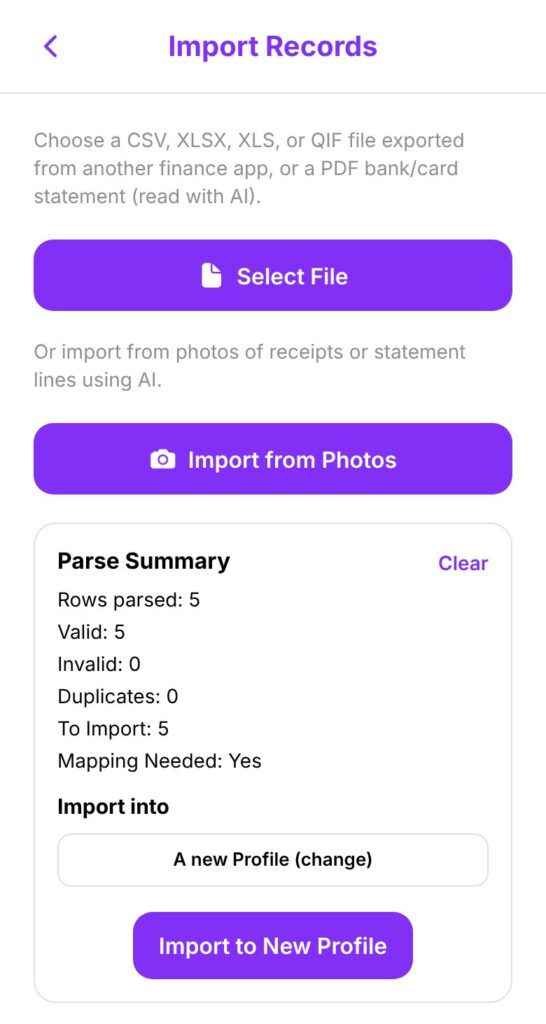
If you’d rather keep the list in an app than on paper, this is where SmartSpendr helps. With Pro, you can import the statement you just downloaded (CSV, Excel, QIF, PDF or a photo of it), and the app turns its lines into records. Then search your records by merchant name to pull up each repeat charge. On the free plan, add each recurring line yourself with Quick Add, which takes about 5 seconds per expense. Either way, file them under Subscriptions, a category every new account already has. (Curious what the AI does with an imported statement? We explain it in AI Budget App, Explained.)
Step 4: Keep, downgrade or cancel with a cost-per-use check
Gut feel is a poor judge here, because every subscription felt worth it on the day you signed up. A number works better:
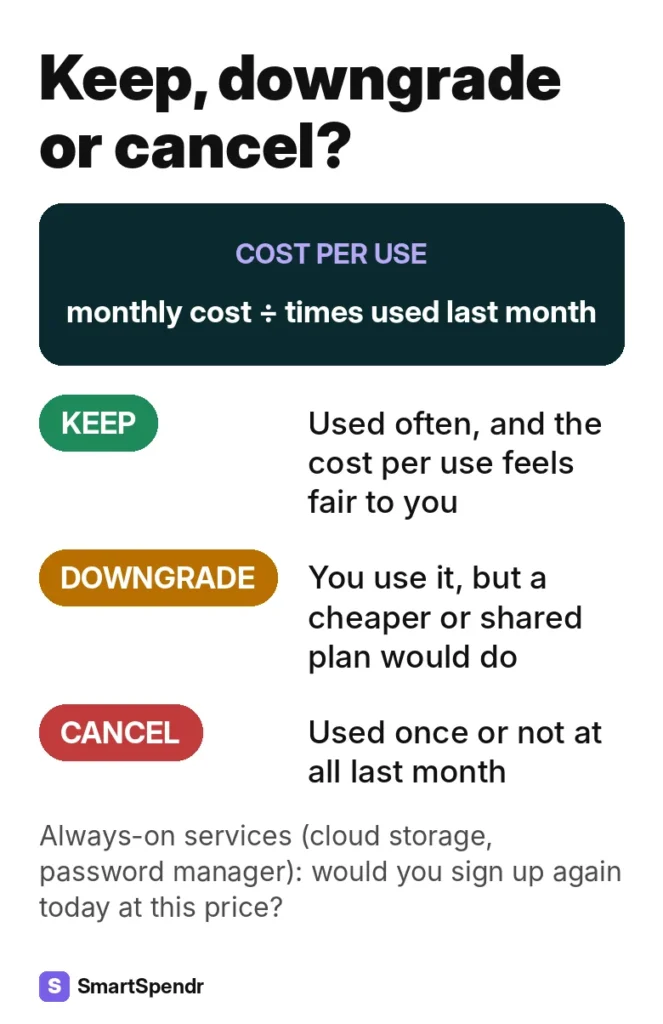
Cost per use = monthly cost ÷ times you used it last month
Then sort each one into a pile:
- Keep: you use it often, and the cost per use looks fair to you.
- Downgrade: you use it, but a cheaper tier, an ad-supported plan or a family plan you already share would cover it.
- Cancel: you used it once or not at all.
There’s no magic cut-off. Pick your own line, say a few dollars per use, and apply it the same way to everything. For always-on services like cloud storage or a password manager, “times used” doesn’t fit. Ask a different question instead: if this lapsed today, would you sign up again at this price?
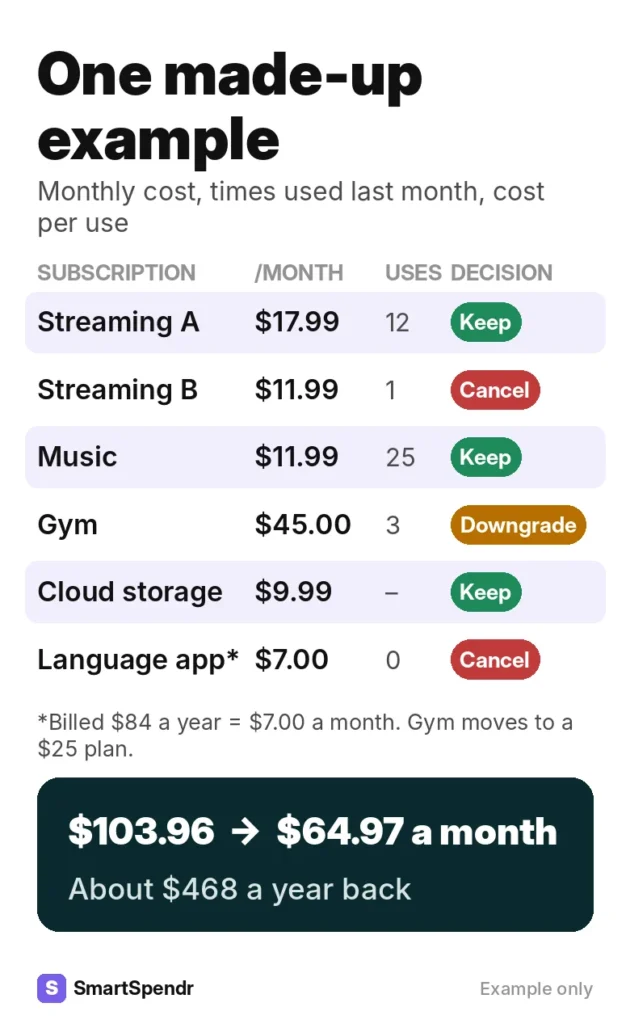
Here’s a made-up example to show how it plays out:
| Subscription (made-up) | Monthly cost | Used last month | Cost per use | Decision |
|---|---|---|---|---|
| Streaming service A | $17.99 | 12 times | $1.50 | Keep |
| Streaming service B | $11.99 | 1 time | $11.99 | Cancel |
| Music streaming | $11.99 | 25 times | $0.48 | Keep |
| Gym | $45.00 | 3 times | $15.00 | Downgrade to a $25 plan |
| Cloud storage | $9.99 | always on | n/a | Keep |
| Language app ($84 a year) | $7.00 | 0 times | n/a | Cancel before it renews |
In this example, three changes take the list from $103.96 to $64.97 a month. That’s $38.99 a month, or about $468 a year.
Step 5: See what’s left as a share of your spending
Cutting a few charges is the quick win. The habit that lasts is knowing what share of your spending your subscriptions take, so you notice when it creeps back up.
If the subscriptions you keep live in their own category, the category chart in SmartSpendr shows that category’s share of your total spending for the period you pick. In our made-up example, if total monthly spending were $3,200, subscriptions would drop from about 3.2% to about 2.0% of it. Small repeat charges are one of the patterns we look at in Why Do I Overspend?, and this is the same idea applied to one category.
Then put two kinds of dates in your phone’s calendar: a quarterly re-check (another 30 minutes) and, for each yearly plan, a reminder about a month before it renews. That way you decide before the charge lands, not after.
Your 30-minute checklist
- Download three months of statements for every card and account.
- Scan the last 12 months for yearly charges.
- Check your iPhone or Google Play subscriptions, PayPal automatic payments, and your phone and internet bills.
- List each charge: name, amount, monthly or yearly, next renewal date.
- Work out cost per use, then keep, downgrade or cancel.
- Put what’s left in one category and note its share of your spending.
- Add a quarterly re-check and a reminder a month before each yearly renewal.
SmartSpendr is free on iOS and Android. Log a charge with Quick Add in about 5 seconds, or import a statement with Pro, then watch your Subscriptions share on the category chart. Get SmartSpendr at smartspendr.app.
This post is for education only and isn’t financial advice.
1 thought on “Subscription Audit: A 30-Minute Check Using One Statement Export”
Comments are closed.